Labels

Showing posts with label Dynamics AX. Show all posts

Microsoft Dynamics 365: What You Need to Know

In July 2016, Microsoft announced it would be combining its CRM and ERP solutions into a single cloud-based bundle called Microsoft Dynamics 365. The announcement raised many questions among users about whether it will replace current Microsoft products and how users can implement these solutions.
One thing is clear, though – Dynamics 365 enables employees to work from anywhere at any time through their mobile devices, and Microsoft believes this will be a game changer for its customers. Read on to learn more about Dynamics 365 and mobility.

Microsoft’s New Approach to Business Applications

Microsoft has billed Dynamics 365 as “the next generation of intelligent business applications” that “enable organizations to grow, evolve, and transform.” But, what does that mean in practice?
According to Microsoft spokespeople, Dynamics 365 is a re-architecting and repackaging of the capabilities of Dynamics CRM, Dynamics AX, and a small business SaaS offering called “Project Madeira.” Furthermore, Dynamics 365 complements Microsoft’s current lineup of CRM and ERP solutions (the existing ERP systems will not go away). And, it will connect to Office 365, making it simple for users to communicate, share, and request information from within one platform.

A New Licensing Model

Microsoft offers two licensing models for Dynamics 365: an application-based model and a role-based model.
Under the application-based model, businesses can purchase as many apps as they need, even if it’s only a single app. Conversely, the role-based model enables employees to access mission-critical apps. For example, a salesperson doesn’t just need to use a CRM app. He or she also needs data from field service representatives and the customer service team. The information from those app categories allows the salesperson to not merely do his or her job, but excel at it.

What People Are Saying about Dynamics 365

The Dynamics 365 announcement attracted a great deal of attention from industry analysts. They note that it represents a new approach to CRM and ERP applications from the software giant.

How to post PO by Code in Dynamics AX

I have task to integrate Dynamics AX with another application by posting PO from out side Dynamics AX, so I used AIF and build new web service to be used from out of AX and call the method below to post PO (packing slip, or invoice) .
public str CreatePostProductReceipt(PurchId _PurchId, Num _PackingSlip, ItemId  Itemid, Qty qty,
InventSiteId  InventSiteId ='', InventLocationId  InventLocationId= '' , inventBatchid batchid = '', InventSerialId  serialId = '', inventsizeId inventsizeId ='', InventColorId InventColorId ='')
{
PurchFormLetter             purchFormLetter;
PurchParmUpdate             purchParmUpdate;
PurchParmTable              purchParmTable;
PurchParmLine               purchParmLine;
PurchTable                  purchTable;
PurchLine                   purchLine;
PurchId                     purchId;
Num                         packingSlipId;
InventDim                   inventDim;
str                 ret='';
System.Exception    err;
;
packingSlipId   = _PackingSlip;
purchTable      = PurchTable::find(_PurchId);
ttsBegin;
try
{
// Create PurchParamUpdate table
purchFormletter = PurchFormLetter::construct(DocumentStatus::PackingSlip); // to post invoice change to DocumentStatus::invoice
purchFormLetter.createParmUpdate(true);
purchParmUpdate = PurchFormLetter.purchParmUpdate();
// Set PurchParmTable table
purchParmTable.clear();
purchParmTable.TransDate                = SystemDateGet();
purchParmTable.Ordering                 = DocumentStatus::PackingSlip;
purchParmTable.ParmJobStatus            = ParmJobStatus::Waiting;
purchParmTable.Num                      = packingSlipId;
purchParmTable.PurchId                  = purchTable.PurchId;
purchParmTable.PurchName                = purchTable.PurchName;
purchParmTable.DeliveryName             = purchTable.DeliveryName;
purchParmTable.OrderAccount             = purchTable.OrderAccount;
purchParmTable.CurrencyCode             = purchTable.CurrencyCode;
purchParmTable.InvoiceAccount           = purchTable.InvoiceAccount;
purchParmTable.ParmId                   = purchParmUpdate.ParmId;
purchParmTable.insert();
// Set PurchParmLine table
while select purchLine
where purchLine.PurchId == purchTable.purchId && purchline.ItemId == Itemid
{
purchParmLine.InitFromPurchLine(purchLine);
inventDim = purchline.inventDim(true);
// Set batch and serial number
if(InventSiteId != '')
inventDim.InventSiteId = InventSiteId;
if(InventLocationId != '')
inventDim.InventLocationId = InventLocationId;
if(batchid != '')
inventDim.inventBatchId = batchId;
if(serialid != '')
inventDim.inventSerialId = serialID;
if(inventsizeId != '')
inventDim.inventsizeId = inventsizeId;
if(InventColorId != '')
inventDim.InventColorId = InventColorId;
purchParmLine.InventDimId = inventDim::findOrCreate(inventdim).inventDimId;
purchParmLine.ReceiveNow    = 1 ; //PurchLine.PurchQty;
purchParmLine.setInventReceiveNow();
purchParmLine.ParmId        = purchParmTable.ParmId;
purchParmLine.TableRefId    = purchParmTable.TableRefId;
purchParmLine.setQty(DocumentStatus::PackingSlip, false, true);
purchParmLine.setLineAmount();
purchParmLine.insert();
}
ttsCommit;
purchFormLetter = PurchFormLetter::construct(DocumentStatus::PackingSlip);
purchFormLetter.transDate(systemDateGet());
purchFormLetter.proforma(false);
purchFormLetter.specQty(PurchUpdate::PackingSlip);
purchFormLetter.purchTable(purchTable);

// This is the ID we hard code as the product receipt ID, if we do the posting via UI
// user would have the option to manually enter this value
purchFormLetter.parmParmTableNum(purchParmTable.ParmId);
purchFormLetter.parmId(purchParmTable.ParmId);
purchFormLetter.purchParmUpdate(purchparmupdate);
purchFormLetter.run();
return "OK";
}
catch (Exception::CLRError)
{
err = CLRInterop::getLastException();
ret = err.ToString();
return ret;
}
Return "Error";
}

Performance considerations for number sequences in Dynamics AX

Consider the following information about how the configuration of number sequences can affect system performance before you set up number sequences.

Continuous and non-continuous number sequences

Number sequences can be continuous or non-continuous. A continuous number sequence does not skip any numbers, but numbers may not be used sequentially. Numbers from a non-continuous number sequence are used sequentially, but the number sequence may skip numbers. For example, if a user cancels a transaction, a number is generated, but not used. In a continuous number sequence, that number is recycled later. In a non-continuous number sequence, the number is not used.

Continuous number sequences are typically required for external documents, such as purchase orders, sales orders, and invoices. However, continuous number sequences can adversely affect system response times because the system must request a number from the database every time that a new document or record is created.

If you use a non-continuous number sequence, you can enable Preallocation on the Performance FastTab of the Number sequences form. When you specify a quantity of numbers to preallocate, the system selects those numbers and stores them in memory. New numbers are requested from the database only after the preallocated quantity has been used.

Unless there is a regulatory requirement that you use continuous number sequences, we recommend that you use non-continuous number sequences for better performance.

Automatic cleanup of number sequences

In case of a power failure, an application error, or other unexpected failure, the system cannot recycle numbers automatically for continuous number sequences. You can run the cleanup process manually or automatically to recover the lost numbers.

Carefully consider server usage when you plan the cleanup process. We recommend that you perform the cleanup as a batch job during non-peak hours.

Recalculation Error Dynamics AX 2009

while running inventory recalculation process, I got this error

“Cannot edit a record in stock transactions (InventTrans) An update
conflict occurred due to another user process deleting the record or changing
one or more fields in the record"

solution to avoid this error, go to AOT –> DataDictionary –> Tables ----> InventTrans

right click on table to display properties window then change OccEnabled property to No.

then resume recalculation again, it will work successfully.

image

Description of the main processing steps that are performed by the Inventory Close and the Inventory Recalculation in Dynamics AX

When you run the Inventory Close routine or the Inventory Recalculation routine in Microsoft Dynamics AX, Microsoft Dynamics AX performs a sequence of steps in their processing.

Steps that are performed by the Inventory Close routine
When you run the Close routine, Microsoft Dynamics AX performs the following steps:
  1. Check whether any Recalculations were run after the date that you choose for your Close. Microsoft Dynamics AX will cancel any of those later Recalculations before the Close can start.
  2. Put all the items that are to be processed into a queue. These items are stored in the InventCostList table.
    Note While a Close or Recalculation is processing, you can click Calculation/Calculation List from the Close & adjustment form to view the data in the InventCostList table. This shows which items are still to be processed by the Close or Recalculation process.
  3. Process each item from that queue sequentially. Microsoft Dynamics AX performs the following for each item:
    1. Settle individual receipts and issues against one another for the item according to the Inventory Model Group such as FIFO, Weighted Average.
      • Make any required cost adjustments to the issue that was settled based on the cost of the receipt(s) against which the issue was settled.
      • Update the inventory transactions to show the settlement and cost adjustment data.
      • Write the settlement data into the Inventory Settlement table. The data will include records that show explicitly which Receipt(s) were settled to each Issue in addition to any cost adjustment that is made to the Issue that is settled.
    2. As soon as all possible transactions are processed for that item, Microsoft Dynamics AX looks for any transactions that are fully settled, and then update those transactions to "Closed." For more information, see the "What fields show that an inventory transaction is closed" section.
  4. As soon as all the items are processed, the settlement records that were created are read and sorted by General Ledger Account. Then, Microsoft Dynamics AX summarizes all the cost adjustments that were made, and a General Ledger Journal is created and posted.
  5. If you select the Run recalculation after closing check box in the Close dialog box, a Recalculation will be run for all items up to today's date.
Steps that are performed by the Inventory Recalculation routine
The Inventory Recalculation routine does a similar job to the Inventory Close routine. However, there are a few differences. When you run the Recalculation routine, Microsoft Dynamics AX performs the following steps:
  1. Check whether any Recalculations were run after the date that you choose to run your Recalculation up to. Microsoft Dynamics AX will cancel any of those later Recalculations found before your Recalculation routine can start.
    Notes
    • In the Select dialog box, you can select item(s) for which you want to run the Recalculation, unlike the Close routine that always processes all items.
    • While a Recalculation or Close is processing, you can click Calculation/Calculation List from the Close & adjustment form to view the data in the InventCostList table. This shows which items are still to be processed by that Close or Recalculation.
  2. Put all the items that are to be processed into a queue, and then store the queue in the InventCostList table.
  3. Process each item from that queue sequentially. Microsoft Dynamics AX performs the following for each item:
    • Make a "virtual" settlement between individual receipts and issues for the item according to the Inventory Model Group such as FIFO, Weighted Average. This is a "virtual" settlement because it is occurs in the Recalculation’s calculations. However, the detailed settlement data that shows the explicit matching of each issue to the various receipts is not stored in the InventSettlement table. The only data that is stored is the cost adjustment that is made to the issue.
      • Make any required cost adjustments to the issue that was settled based on the cost of the receipt(s) against which the issue was settled.
      • Write a single settlement record for any cost adjustment that is made for that Issue into the Inventory Settlement table.
  4. As soon as all the items are processed, the cost adjustment settlement records that were created are read, sorted by General Ledger Account, and summarized and posted in a General Ledger Journal.
What fields show that an inventory transaction is closed
To show that an inventory transaction is "closed", Microsoft Dynamics AX performs the following:
  1. When the Inventory Close routine has fully settled the Quantity and Financial Cost of a specific inventory transaction, Microsoft Dynamics AX updates the individual inventory transaction to show that the transaction is "closed."
  2. For a transaction to be closed, it must meet the following criteria:
    • The "Quantity" must match the "Quantity Settled."
    • The sum of "Cost Amount Posted" plus "Cost Amount Adjustment" must match the "Cost Amount Settled."
  3. When those conditions are met, then the Close program will do the following:
    • Set the field "Value Open" from "Yes" to "No."
    • Store the date of the close in the field "Date Closed."
    This means that the individual inventory transaction is "closed."

Common Keys Steps for The Planning integration process Between AX and Others Application

1. In a typical integration scenario, users who have business expertise first determine the document exchange needs. These are requirements from a business perspective. The business users work with the Implementation team to specify:
a. What data is to be exchanged.
b. Any business logic related to that data.
c. The external systems with which data is to be exchanged.
d. The conditions under which data is sent from or received by Microsoft Dynamics AX.


2. The partner or system implementer works with the customer and their IT staff to determine the hardware and software requirements for AIF. They analyze the existing environment and recommend any new hardware or software that must be installed.


3. The customer's IT staff installs and configures any required hardware and software to support AIF.

4. The partner or customer developer programs the document exchange. They can make customizations to the AIF documents or create new documents to meet the requirements of the business users. How AIF is configured depends in part on the network environment. Therefore, the developer may work with IT staff when implementing an integration scenario.

5. IT staff monitors the document exchanges and troubleshoot any errors that are generated.

Dynamics AX 2009 Workflow does not working

I have faced a problem today at my work, the workflow does not working, and there not PR submitted and any incident is Pending.

I checked every thing and restart AOS Service  but my Issue is not fixed, so I checked Windows event log on server that host Workflow services and I got the bellow error.


Session log on for Microsoft Dynamics failed.

Dynamics Adapter LogonAs failed.

Microsoft.Dynamics.Framework.BusinessConnector.Session.Exceptions.FatalSessionException
   at Microsoft.Dynamics.Framework.BusinessConnector.Session.DynamicsSession.HandleException(String message, Exception exception, HandleExceptionCallback callback)
   at Microsoft.Dynamics.Framework.BusinessConnector.Session.DynamicsBase.HandleExceptionInternal(String message, Exception e)
   at Microsoft.Dynamics.Framework.BusinessConnector.Session.DynamicsAdapter.LogonAs(String user, String domain, NetworkCredential bcProxyCredentials, String company, String language, String objectServer, String configuration)
   at Microsoft.Dynamics.Framework.BusinessConnector.Session.DynamicsAdapter.Microsoft.Dynamics.Framework.BusinessConnector.Adapter.IAxaptaAdapter.LogonAs(String user, String domain, NetworkCredential bcProxyCredentials, String company, String language, String objectServer, String configuration)
   at Microsoft.Dynamics.Framework.Workflow.BusinessConnector.WorkflowSession.OnLogon(IAxaptaAdapter axaptaAdapter)
   at Microsoft.Dynamics.Framework.BusinessConnector.Session.DynamicsSession.Init(ICacheContext context)

Microsoft.Dynamics.BusinessConnectorNet.LogonFailedException
   at Microsoft.Dynamics.BusinessConnectorNet.Axapta.Logon(BC_PROXY_ACCOUNT_INFO* pBCProxyAccountInfo, String company, String language, String objectServer, String configuration)
   at Microsoft.Dynamics.BusinessConnectorNet.Axapta.LogonUsingBCProxyAccount(_SEC_WINNT_AUTH_IDENTITY_W* pImpersonatedUserAccount, NetworkCredential bcProxyCredentials, String company, String language, String objectServer, String configuration)
   at Microsoft.Dynamics.BusinessConnectorNet.Axapta.LogonAs(String user, String domain, NetworkCredential bcProxyCredentials, String company, String language, String objectServer, String configuration)
   at Microsoft.Dynamics.Framework.BusinessConnector.Session.DynamicsAdapter.LogonAs(String user, String domain, NetworkCredential bcProxyCredentials, String company, String language, String objectServer, String configuration)

Solution:

Restart IIS service on the server.

What makes a good Dynamics AX Project Manager?

The success and failure of Dynamics AX project is directly related to the quality of the project manager leading it. A recent survey of PWC showed that over 85% of dynamics ax project failed to achieve their core objectives – poor project management was one of the root causes.

to complete the post kindly click this link

Microsoft Dynamics AX 2009 System Requirements

Microsoft supports the following system recommendations for Microsoft Dynamics AX 2009. Before installing Microsoft Dynamics AX, be sure that the system you are working with meets or exceeds the minimum hardware and software requirements.
Network requirements
The following table lists the minimum network requirements for the connection between the client and the Application Object Server (AOS) and the connection between the AOS and the database in a Microsoft Dynamics AX system.
Value Client to AOS AOS to database
Bandwidth (b) 100 megabits per second (Mbps) 100 Mbps
Latency (l) Less than 5 milliseconds Less than 5 milliseconds

The total response time for running a task in Microsoft Dynamics AX can be expressed by the following formula:
Response time = (Number of calls to and from the server * l) + Number of bytes sent/b
We recommend that you consider the following types of connections when planning your system:
· For a system that uses a local area network (LAN), connect directly through a Microsoft Dynamics AX client.
· For a system that uses a wide area network (WAN), connect using Windows Server Terminal Services or another remote connection product. For more information about using Terminal Services, see the Terminal Services site on Microsoft TechNet.

Top 10 issues discovered from Dynamics AX Health Check

A very informative blog post by Bertrand Caillet covering important points for Dynamics AX best practices for health check, and it contains a sub links under main points. I am glade to share it over my page.

1. Max Degree of Parallelism is not set to 1

2. No Pre-Allocation for Non Continuous Number Sequences with high consumption

3. Insufficient Auto Growth for Data and Log files

4. Processor bottleneck for Dynamics AX batch processing

5. Heavy Application database logging

6. Missing Clustered indexes

7. Wrong Index maintenance

8. Enabled debug in Production

9. Power Management set to Balanced

10. Kernel and Application are outdated and should be patched

The Premier Field Engineer team has been running several hundred of Dynamics AX Health Check worldwide and I thought it would be interested to share the most common issues discovered during onsite. Some of the following issues might look trivial but the reality is that despite all the literature that exists today on the solution Dynamics AX, we can still see same repeated patterns, especially when default settings are used in production. Please note there is no logical order in this list.


1. Max Degree of Parallelism is not set to 1

The default setting from SQL Server installation is zero. If OLAP applications are running on the same SQL Server instance, the risk is that all CPUs are consumed (% Processor Time) and therefore impact performance of the OLTP application. To prevent this, we recommend to set MAXDOP to 1. Please note that in some situation when SQL Server batches or queries are run, using some degree of query parallelism can be beneficial. In this case setting Max degree of parallelism to 2 or 4 is probably a better value to take into account both types of queries.


2. No Pre-Allocation for Non Continuous Number Sequences with high consumption

This is a crucial setting in the Dynamics AX application that needs to be reviewed every few months on production to match the usage of the number sequences. Basically, number sequences can be Continuous or Non Continuous. When they are non-continuous, you can allow pre allocation per ID and therefore reduce the database calls and improve performance. When consumption is high, like several ID per seconds, we have noticed Lock Escalation events on the table NumberSequenceTable. This is especially true when Dynamics AX batch are running and generate thousands of records for Journals Lines creation or Sales Order Invoicing. Please read this blog post to better estimate this consumption.


3. Insufficient Auto Growth for Data and Log files

The default Auto growth is By 1 MB for Data and By 10% for Log files. If the initial size is too small, you will notice frequent auto growth events, resulting in negative performance impact. In the SQL trace, you can monitor such event with ID and see the duration of each auto growth event. The goal is to set an appropriate Auto Growth value on the Dynamics AX and TempDB Data and Log files to prevent frequent auto growth events during daytime. You can monitor such events and their duration in milliseconds in the SQL Trace with ID 92 and 93. One recommendation is to set the Auto Growth with a greater value, from 200MB to 500MB.


4. Processor bottleneck for Dynamics AX batch processing

Most of the customer running Dynamics AX are enabling only one AOS instance for the batch processing and several AOS dedicated for rich clients load which therefore limit the number of batch thread to the number of logical processor available on that single AOS instance. Also the setting on the AOS batch is often the default one with 8 maximum batch thread and 24 hours a day schedule . A good ratio to calculate the number of thread is to multiply the number of cores by 2, but this depends on the processes running and should be validated in testing. To overcome this limitation, you can set different batch thread for different time of the day and enable more AOS for Batch processing at night. For example, you can dedicate one AOS for Rich client load from 8 am to 6 pm and leverage it for batch processing at night. You can read this blog post to learn how to tune the number of thread required for faster batch execution.


5. Heavy Application database logging

This is another important setting in the Dynamics AX application that often has negative impact when over utilized. This feature allows to track all CRUD operations (including Rename primary key) on any field and any table of the database. This information will be stored in the table SYSDATABASELOG. You should not use this feature to track automated transactions run in batch jobs. You can monitor the table growth of SYSDATABASELOG and estimate the most expensive table set up with database logging. Please also notice that enabling the logging on field like CreatedDateTime or ModifiedDateTime will change the default behavior of InsertRecordSet from a single round trip to the database to a record-by-record operation. The three recommendations are:

  • Define a retention policy to only keep the latest 3 months for example so that size of table SYSDATABASELOG remains small. You can find the clean-up form under Administration | Inquiries | Database log | Clean up log.
  • Avoid heavy logging for transactional tables processed during the batch and prioritize activity that is absolutely necessary either for legal compliance or to meet other business requirements.
  • Avoid logging the columns CreatedDateTime or ModifiedDateTime of any table.


6. Missing Clustered indexes

This might not be the most common issues but it is definitively one of the most impacting one. All tables in an OLTP database should have clustered indexes, and you should investigate them by looking at the highly active tables, tables frequently involved in blocking or deadlock situations, tables that frequently incur the overhead of forwarded rows. Because the database model is changing during the lifecycle of the application with new customization and because indexes are managed from the Application Object Tree, it is important to periodically check the missing indexes from SQL Server Statistics. You can use the query “4-Analyze_SQL_Indexes.sql” from Dynamicsperf version 1.1.6 to find all missing indexes.


7. Wrong Index maintenance

Following the Missing clustered indexes issue mentioned above, the index maintenance is clearly one of the unhealthiest issue for Dynamics AX. Having a bad index maintenance or no index maintenance at all will have the same consequences: when statistics are outdated, Query Plan will use SCAN instead of SEEK operations and their performance will be badly impacted. The level of fragmentation is not that critical as such for performance, but it should be part of the weekly maintenance. The following is a recommended example:

  • Reorganize indexes that are larger than 1000 pages and are between 10% and 30% fragmented.
  • Rebuild indexes that are larger than 1000 pages and more than 30% fragmented using a fill factor between 85% and 95% depending on the frequency of the job execution.

It is also strongly recommended to run Update Statistics regularly with FULL SCAN, or with at least a 50% sample, as well as having Auto_Create_Stats and Auto_Update_Stats enabled. If you are running SQL 2008 R2 SP1 or greater, you can also enable Trace Flag 2371.


8. Enabled debug in Production

In the Dynamics AX Server Configuration Utility, you should always disable the two settings that allow user breakpoint and global breakpoint to debug X++ code. Even though you delete all breakpoints in the Application Object Tree, you will still suffer from a clear performance degradation around 10%.


9. Power Management set to Balanced

This is an easy one but almost never implemented in production since the default power management is set to balance. Changing it to High performance is highly recommended for all Windows Server 2008 used in Production. You can see this setting from Control Panel – hardware – Power Options or with the following command: “powercfg –getactivescheme”.


10. Kernel and Application are outdated and should be patched

Last but not least, maintain your Dynamics AX solution as much updated as possible. For example, you can notice that latest Rollup for Dynamics AX 2009 SP1 is RU8 and is already one year old. Several hundred of Hot Fixes have been released since and it is a best practice to apply those to leverage the latest fixes from the Product Group. The two recommendations are:

  • Patch the Binaries with the latest Kernel available. You can see the latest KB on the AX Support Blog. As of today, the latest one for Dynamics AX 2009 SP1 is build 5.0.1600.1824 from June 2013.
  • For the Application, you should upgrade to latest RU available, but you can also proactively check the list of individual Hot Fixes relevant to your business logic.

As you can see this list is not exhaustive and we could elaborate hundred of issues discovered from existing Dynamics AX live instance, but I do hope it can help you remediate some of the current issues you may experience. I will also encourage you to read the great article written by Arvind Shyamsundar on MSPFE blog regarding the 10 top SQL Server Issues uncovered by the SQL Server Risk Assessment Program.

Finally, please contact your Microsoft Premier Technical Account Manager if you will like to receive guidance from the Premier Field Engineering.

Source: Dynamics AX in the Filed

Dynamics AX Performance Optimization Guide

Imparted from Here

Book Review - Dynamics AX Performance Optimization Guide

"Dynamics AX Performance Optimization Guide" - This book lives up to it's name and I would recommend it as an excellent resource and a handy guide to troubleshoot performance related issues to Dynamics AX and SQL. This book is targeted towards the technical audience.
Along with Dynamics AX, this book covers advanced troubleshooting tips with SQL Server which many of us might have not known before.
This book spans approx. 200 pages and it's divided into 8 chapters:
1. Understanding Dynamics AX - covering Dynamics AX Architecture, Sessions, Concurrency Control
2. Monitoring Hardware, Database and Dynamics AX - Touches on the key areas like Hardware Monitoring, Database Monitoring, Database I/O, Monitoring Dynamics AX
3. Setup and Configuration - This chapter extensively covers from a SQL Server perspective like Recovery models, Files and File Groups, SQL Server configuration, Database options
4. Common Dynamics AX performance problem - Disk I/O Bottlenecks, Memory Bottlenecks, Extensive Logging, Deadlocking
5. Optimizing Dynamics AX SQL Statement - Index Hints, Trace flags, Best Development Practices, Buffer and Caching mechanisms are covered in this chapter
6. SQL Server Performance and Compilation Optimizations for Dynamics AX - Resource Management, Auditing and Compliance, Performance Monitoring , Query Optimizations and Hardware Optimizations
7. Database Maintenance - Managing Indexes and Locking
8. Infrastructure and Hyper - V virtualization - Hardware Sizing, Sizing guidelines for Dynamics AX 2012 and 2009, Dynamics AX Server Virtualization benefits, Hyper-V best practices
As you might have already seen by now, this book covers extensively SQL Troubleshooting which i think is very critical to understand while dealing with performance issues. I think every technical person developing in Dynamics AX should have a good understanding of SQL Server from an administrative point of view and this book exactly does that. Whether you are a newbie in AX Development or an experienced developer, there's a lot to learn from this book.
I really appreciate Martin and Daniel for the effort they have put behind this book and I would recommend every technical person to grab a copy of the book if they could. Good job guys!
If you like to order a copy of this book, kindly go to this link http://www.amazon.com/Dynamics-Performance-Optimization-Guide-Microsoft/product-reviews/1481100750

Temporary Tables In Dynamics AX

In Microsoft Dynamics AX, a table typically maps to a corresponding table in the database. Temporary tables enable to you define table objects that are not persisted to the database. Define a table as a temporary table by doing one of the following:

  • Set the table's Temporary property to Yes at design time.

    –or–

  • Call the setTmp method in X++ code.

A temporary table is held in memory until its size reaches 128 KB. The dataset is then written to a disk file. The disk file for a temporary table has the naming convention $tmp<nnnnnnnn>.$$$.

A temporary table is located in the Application Object Tree (AOT) under the Data Dictionary\Tables node, just like a persisted table. If a table is defined as temporary, you can use it just as you would a static table. All X++ DML statements can be run against a temporary table.

Note: It is a best practice to infix temporary table names with Tmp. This improves readability in code.

Scope      A temporary table exists only while a record buffer variable that references the table exists. No memory is allocated to the temporary table until the first record is inserted. At that point, memory is allocated. Disk space is allocated, if it is needed. As soon as the record buffer goes out of scope, the memory is de-allocated and the disk file is deleted.

A temporary table resides on the tier where the first record is inserted. If a record is inserted on the server tier, memory for the temporary table is allocated on the server tier. If the temporary table exceeds 128 KB, a disk file is created on the server.

Adding data to temp table

To add data to a temporary table, you must define the record buffer and call the insert method. The following is a code example that uses the TmpCustLedger table.

static void TableTmpInsertRecord(Args _args)
{
TmpCustLedger custTmpLedger;
;
custTmpLedger.AccountNum = '1000';
custTmpLedger.Name = 'NameValue';
custTmpLedger.Balance01 = 2345000;
custTmpLedger.insert();
}


To free the memory and delete the file for the temporary table, set the record buffer variable to null, as follows.

custTmpLedger = null;

To populate a temporary table with data from a persisted table, use the setTmp method. The following code example copies all customers in Toronto to the temporary table.

static void CopyPersistedTableToTemp(Args _args)
{
CustTable custTable;
CustTable custTmpLedger;
;
custTmpLedger.setTmp();
custTable.recordLevelSecurity(true);

while select custTable where custTable.City == 'Toronto'
{
custTmpLedger.data(custTable.data());
custTmpLedger.doInsert();
}
}

Indexes


Indexes can be defined on a temporary table just as you would a persisted table. If a temporary table is created by copying a persisted table, the indexes are also copied to the temporary table. Indexes are very useful for retrieving data in temporary tables especially if the temporary table data is in a disk file.


Temporary table vs. Container 

Microsoft Dynamics AX supports a special data type called a container. This data type can be used just as you would use a temporary table.


  • Data in containers are stored and retrieved sequentially, but a temporary table enables you to define indexes to speed up data retrieval.
  • Containers provide slower data access if you are working with many records. However, if you are working with only a few records, use a container.
  • Another important difference between temporary tables and containers is how they are used in method calls. When you pass a temporary table into a method call, it is passed by reference. Containers are passed by value. When a variable is passed by reference, only a pointer to the object is passed into the method. When a variable is passed by value, a new copy of the variable is passed into the method. If the computer has a limited amount of memory, it might start swapping memory to disk, slowing down application execution. When you pass a variable into a method, a temporary table may provide better performance than a container.

Integrate Microsoft Dynamics AX analytic components with external data sources

Data warehouses are a popular solution for providing analytic capabilities to users. Until recently, data warehouses were the only reasonable solution for building robust analytic capability. However, as applications become easily interoperable and as technologies such as in-memory databases and OLAP become cost-effective and simpler to use, building a data warehouse is not the only solution to meet analytic requirements.
Table below presents several architecture options for integrating external data with the prebuilt
analytic solution; a data warehouse is just one of the options. The columns represent architecture options, whereas the rows represent the benefits and cost implications of each option.

image

When most data is in Microsoft Dynamics AX (assuming that Microsoft Dynamics AX is the
predominant  source of data in the organization), you have two options.

The data mash-up option is best suited to an environment where capable users author and publish analyses for the use of others. This option relies on client tools such as Excel PowerPivot. Microsoft Dynamics AX 2012 enables Microsoft Dynamics AX queries to be published to data mash-up tools through OData feeds, or as data exports to Excel.

You can bring external data into Microsoft Dynamics AX either through services (data services consumed by means of inbound ports) or as batch jobs that are executed periodically to import data into tables. With this approach, external data is represented as read-only data within Microsoft Dynamics AX. The benefit to this approach is that external data appears as native Microsoft Dynamics AX data to Microsoft Dynamics AX tools. You can create analytics, reports, and inquiry forms that use the combined data.

A more complex approach involves integrating external data directly into the prebuilt BI solution.
With this option, a BI developer adds another data source to the prebuilt BI solution by using Business Intelligence Development Studio. Additional data tables are brought into the DSV by using the new data connection. It is possible to create dimensions and measures by using the new tables in the DSV.

The traditional ETL-based data warehouse option is suited to scenarios that require complex
transformations or large volumes of data. Although this option is more flexible in terms of capabilities, it is also the most expensive to implement and manage.

You might want to build a data warehouse to implement the following scenarios:

■ Integrate external data sources with Microsoft Dynamics AX data In this approach, the Microsoft Dynamics AX implementation serves as one of many corporate applications.
Although Microsoft Dynamics AX contains some of the corporate data, other systems contain
a considerable portion of the data. To make decisions, data must be combined across systems, and the data warehouse serves that need.
■ Incorporate legacy data into Microsoft Dynamics AX analytics Most organizations
migrate recent data when implementing Microsoft Dynamics AX. Legacy data is still
maintained in read-only instances of legacy applications. Although legacy data is no longer
used for operational purposes, it is required for historical trend analysis. A data warehouse
serves as the repository where legacy data is combined with current data.

Although Microsoft Dynamics AX 2012 does not directly support the creation of a data warehouse schema, the following artifacts generated in Microsoft Dynamics AX 2012 can be used to build a data warehouse:

■ The DSV generated as part of the prebuilt analytic solution can be used within SQL Server
Integration Services when an ETL package is developed to extract data from Microsoft
Dynamics AX.
■ Microsoft Dynamics AX document services can be consumed as data sources based on Simple Object Access Protocol (SOAP).
■ Microsoft Dynamics AX queries can be exposed as OData feeds.

Extend cubes [AX 2012]

you can customize the prebuilt analysis project relatively easily by using the SQL Server Analysis Services Project Wizard. But in some cases, you may want to make
deeper customizations. For example, you might want to:
■ Create a rich hierarchy, such as a parent/child hierarchy to model organizational units.
■ Add new KPIs.
■ Bring external data into the analysis project and create a custom dimension.
You can use Business Intelligence Development Studio to make these types of changes.

Because the prebuilt BI components are included in the AOT as an SSAS project, you can modify the project. To modify the prebuilt Analysis Services project, do the following:
1. In the AOT, expand the Visual Studio\Analysis Services Projects node.
2. Right-click the project that you want to modify, and then click Edit.
An Infolog message appears, stating that a copy of the SSAS project has been created and saved, as shown in Figure below

 image

If SQL Server Business Intelligence Studio is installed, it will start and open the copy of the project.
Changes that you make to the project are not automatically saved to the AOT. You need to save the project and import it back into the AOT.

DSV
The DSV contains the table and view definitions that are used by analytic artifacts. Notice that the OLAP framework has implemented several query definition patterns in the DSV:
■ Financial dimensions that the wizard has added appear as custom query definitions in the DSV.
■ The OLAP framework has created query definitions corresponding to Microsoft Dynamics AX views.
■ The OLAP framework has added a reference relationship to resolve virtual companies, if your Microsoft Dynamics AX installation has virtual company definitions.
■ The OLAP framework has created views that make Microsoft Dynamics AX enumerations accessible

in all of the languages that have been added to the project.
Avoid modifying any of the framework-generated objects in the DSV. Any changes that you make to these objects are overwritten without warning the next time you update the project.
You may add your own objects to the DSV (for example, new query definitions. The Project Update  option will preserve these objects.
In Microsoft Dynamics AX 2012 R2, do not implement any partition-specific logic in any of the query definitions. Otherwise, when the project is deployed to multiple partitions, the system may
generate processing errors. (Because the framework adds partition-specific logic to the DSV at deployment time, it may not apply the changes accurately to your query definitions.)

Data source
A data source has been created that points to the Microsoft Dynamics AX OLTP database.


Dimensions, measures, and measure groups

In Figure below , notice the dimensions that are included with the Microsoft Dynamics AX 2012 prebuilt BI solution, as well as the measures and measure groups.
For a list of measures and dimensions, see “Cube and KPI reference for Microsoft Dynamics AX 2012” at http://msdn.microsoft.com/en-us/library/hh781074.aspx.
image

KPIs and calculations
The SSAS project contains prebuilt KPIs and calculations. Microsoft Dynamics AX 2012 does not provide the capability to model KPIs and calculations in the AOT. You can modify these definitions or
add new ones directly in Business Intelligence Development Studio.

Customize cubes [AX 2012]

This post related to the post [Customizing the prebuilt BI solution]

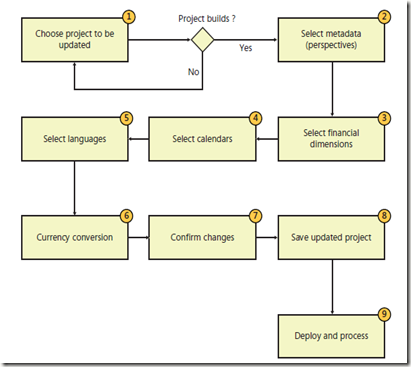
Figure below shows the process for updating a cube. This post walk through each step in detail.
image

Choose the project to update

The first step is selecting the project to modify. You can select an SSAS project in the AOT or a project maintained on disk. The wizard performs basic validation of the selected project before you can proceed.
The update process is designed to ensure that you end up with a project that you can
deploy and process without any errors. If the selected project does not build (the most basic measure of validity), the wizard will not let you proceed to the next step.

Select metadata
Next, you select the Microsoft Dynamics AX metadata that you want to include or exclude, as shown in Figure below. The metadata that is defined in the Perspectives node in the AOT is the source of metadata for the prebuilt BI solution. By including or excluding metadata definitions, you can include (or exclude) measures, dimensions, and even cubes

image

For example, if you remove the Accounts Receivable perspective from the selection, the Accounts Receivable cube will be removed from the project that you are updating. If you model a new perspective in the AOT and include it in the project, the corresponding measures and dimensions will be created and added to the SSAS project.

For a description of metadata definitions and the resulting analytic artifacts, see “Defining Cubes in Microsoft Dynamics AX” at http://msdn.microsoft.com/en-us/library/cc615265.aspx. Metadata will be covered later in post with title “Creating cubes”.

Select financial dimensions
On the next wizard page, you are prompted to select the Microsoft Dynamics AX financial dimensions to include in the project, as shown in Figure below

image

Each financial dimension that you select is added as an OLAP dimension with the same name.
If a dimension by that name already exists within the SSAS project, the system will disambiguate the newly added dimension by adding a suffix.


Select calendars
Next, the wizard prompts you to select the calendars to include as date dimensions, as shown in Figure below. If you have defined any additional calendars, you can include them in the project at this point.
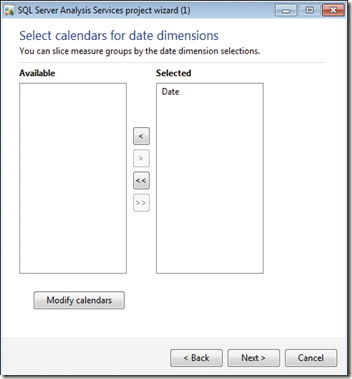
image

In Microsoft Dynamics AX 2009, the prebuilt analysis project included two date dimensions: a
Gregorian calendar–based dimension called DATE and a fiscal calendar–based dimension called FISCALPERIODDATEDIMENSION. If you wanted to include additional date dimensions, you would have had to customize the prebuilt project by using Business Intelligence Development Studio.

Microsoft Dynamics AX 2012 includes a utility called Date Dimensions that lets  you define custom calendars for analysis purposes. A default calendar, Date, is included with the product, and you can define additional calendars by using Date Dimensions.

For each calendar that you add on this wizard page, the system creates a date dimension in the SSAS project. For example, if you added a new calendar called Sales Calendar, the system will add a date dimension called Sales Calendar. In addition, the system will create role-playing date dimensions that correspond to each of the dates that are present in cubes. You can’t remove the prebuilt date dimension from the project.

You can start Date Dimensions directly from the SQL Server Analysis Services Project Wizard, or from the System Administration area page.

You can define a calendar by selecting the beginning of the year and the first day of the week.
For example, for the Sales calendar, the year starts on April 1 and ends on March 31, and the week starts on Sunday. You can enter a date range to specify the calendar records that you want the system to populate in advance. You can also select the hierarchies that will be created for each calendar.

When you close the form, if you added or modified calendars, the system will populate dates
according to the new parameters that you defined. In addition, the system will add the required
translations. As you will notice later, the system adds a rich set of attributes for each calendar defined here. You can use any of these attributes to slice the data contained in cubes.

In addition, Date Dimensions adds a NULL date record (1/1/1900) and a DATEMAX date record
(31/12/2154) to each calendar, so that fact records that contain a NULL date or the DATEMAX date will be linked to these extra records, preventing an “unknown member” error from occurring during cube processing.

Select languages

The prebuilt SSAS project uses EN-US as the default language. However, you might have sites in other countries/regions and want the users there to be able to view measure and dimension names in their own languages.

The project can include additional languages through a feature in SSAS called Translations. The
Translations feature enables dimensions, measures, many other kinds of metadata, and data to be translated to other languages by letting you add companion text in other languages.

For example, if you add German translations to the project, when a German user views data in a cube by using, for example, Microsoft Excel, data labels are displayed in German.

The prebuilt SSAS project does not include translated strings. However, translated labels are
already available in the system. The SQL Server Analysis Services Project Wizard lets you add any of the required languages to the project by using existing translations from within Microsoft Dynamics AX, as shown in Figure below.

image

It is recommended that you add only the translations that you need. Each translation adds strings to your project, and the size of the project increases by a few megabytes each time you add a language. In addition, processing gets a bit slower and the size of the backup increases.

If you have the Standard edition of SQL Server 2005 or SQL Server 2008, you could not add
additional translations (for Microsoft Dynamics AX 2009). You had to buy the Enterprise edition of SQL Server in order to add translations to cubes. This restriction has been removed in SQL Server 2008 R2 and later versions.

Labels associated with Microsoft Dynamics AX tables and views are carried through to the
corresponding dimensions and measures. It is also possible to add specific labels to dimensions and measures by defining the labels in perspectives.

If you manually add translations to the project in Business Intelligence Development Studio,
the wizard overwrites the labels every time you run the Update function, by sourcing labels from
Microsoft Dynamics AX. To add your own translations, either define a new label and associate it with the object or change the translation in Microsoft Dynamics AX by using Microsoft Dynamics AX Label Editor.

Add support for currency conversion
The prebuilt SSAS project contains the logic to convert measures that are based on the Microsoft Dynamics AX extended data type (EDT), AmountMST, to other Microsoft Dynamics AX currencies. For example, if the amount was recorded in USD, you can display the value of the amount in GBP or EUR by using the analysis currency dimension to slice the amount.
If you want to, you can exclude currency conversions by clearing the check box on the wizard page shown in Figure below

image

Note Removing support for currency conversion not only removes this feature but might
also cause prebuilt reports to fail, because they rely on the currency conversion option to
be displayed in Role Centers.

Confirm your changes
When you click Next on the Add Currency Conversion page, the wizard goes to work, performing the following tasks:
■ Generates a new project based on the perspectives and other options that you have chosen.
■ Compares the newly generated project with the project you wanted to update.
■ Displays the differences between the new project (that is, the changes you want to apply)
and the old project, as shown in Figure below

image
In the wizard, it is assumed that you want to confirm all changes; therefore, all changes are
selected by default. If you want the wizard to apply all changes, click Next, and then the wizard will create a project that includes the changes that you selected.

However, if you are an experienced BI developer and want more granular control of the Update
option, you can examine the updates in detail and accept or reject the changes.
Be aware, however, that making changes to the wizard at a granular level may result in
inconsistencies within the analysis project. If such inconsistencies result in a project that does not build, the wizard displays a message to inform you.

Here are some examples of when you might want to evaluate changes individually:

■ You might have removed some perspectives from the generation process (for example, you
have not implemented Project Accounting functionality in Microsoft Dynamics AX and are
therefore not interested in the Project Accounting cube). Ordinarily, the system would remove
the resulting analytic artifacts, including a dimension. However, you may want to use that
dimension in analysis, even if the Project Accounting cube is not used. Therefore, you reject
the deletion of that dimension.
■ You have added extra attributes to the customer dimension by using Business Intelligence
Development Studio. The system would ordinarily delete these extra attributes, because they
are not associated with Microsoft Dynamics AX metadata. However, you may want to reject
the deletion and keep these extra attributes intact.

Save the updated project
Next, the wizard applies the changes you specified in the previous step. If you simply clicked Next (that is, you did not make any changes to the options selected by the wizard), the wizard would save the resulting project.
If you made changes and the wizard encountered inconsistencies (that is, the project is in an error state and does not build), it displays a warning asking whether you want to save the project or go back to the confirmation step and reconsider the changes.
If you choose to save the project in an inconsistent state (if you are an experienced BI developer, you might choose this approach), you must fix the project by using Business Intelligence Development Studio; otherwise, subsequent deployment steps will be unsuccessful.

Deploy and process cubes
Next, you can deploy the cubes to an SSAS server and, optionally, process the cubes. As discussed in the ”Deploy cubes” in another post before “ Customizing the prebuilt BI solution”, in a multiple-partition environment in Microsoft Dynamics AX 2012 R2, the system will deploy the project to multiple SSAS databases.