We often get following error messages concerning workflow:
Dynamics Adapter CallStaticClassMethod failed.
SysWorkflowEventService-onAcknowledgeWorkItem Invalid message sequence - missing Activation message.
Microsoft.Dynamics.BusinessConnectorNet.XppException
at Microsoft.Dynamics.BusinessConnectorNet.Axapta.CallStaticClassMethod(String className, String methodName, Object[] paramList) at Microsoft.Dynamics.Framework.BusinessConnector.Session.DynamicsAdapter.CallStaticClassMethod(String className, String methodName, Object param1, Object param2)
When these occur, none of the workflow items are processed anymore. In Basic –> Inquiries –> Workflow history you can see that all workflow items has status “Pending”
Usually error SysWorkflowEventService-onAcknowledgeWorkItem Invalid message sequence - missing Activation message can mean two problems:
1. Business Connector connect to different AOS.
2. In Workflow configuration you did not create messages in user language.
To resolve first problem:
1. Go to Microsoft Dynamics AX 2009 Configuration
2. Change “configuration target” to “Business Connector (non-interactive use only)”
3. Check on connection tab if there is correct AOS mentioned
By default Workflow during connection to AOS is using active Dynamics AX BC.NET configuration.
To be able to set up different configuration in web.config you need to apply kernel hotfix and follow instruction given in KB 960801: https://mbs.microsoft.com/knowledgebase/KBDisplay.aspx?scid=kb$EN-US$960801&wa=wsignin1.0
If you have hotfix KB 960801 installed and BC.NET still is connecting to wrong AOS please double check in GAC (usually C:\windows\assembly) if library Microsoft.Dynamics.Framework.BusinessConnector.dll and the Microsoft.Dynamics.Framework.Communications.dll has version higher than 5.0.1500.144 for DAX 2009 SP1 and 5.0.593.262 for DAX 2009 RTM
To resolve second problem make sure that you have instructions set up in user language in workflow configuration
Manage the State Service (SharePoint Server 2010)
The State Service is a shared service that is used by some Microsoft SharePoint Server 2010 components to store temporary data across related HTTP requests in a SQL Server database. In SharePoint Server 2010, the State Service is required by InfoPath Forms Services (including out of the box and custom workflow forms), the SharePoint Server 2010 Chart Web Part, and certain Microsoft Visio 2010 scenarios that do not use Microsoft Silverlight 3.
Configure the State Service
The State Service is automatically configured as part of the Basic installation of SharePoint Server 2010.
Advanced installation of SharePoint Server 2010 requires separate configuration of the State Service. You can configure the State Service after installation of SharePoint Server 2010 by using one of the following tools:
Hosted deployments Multiple deployments hosted on the same farm automatically partition forms and chart data so that tenants cannot see forms and charts of other tenants. Organizations that have policies requiring strict separation of hosted deployments might want to create new service applications and state databases for each deployment, with each service and database associated with a new Web application for the deployment. You should also closely monitor the performance of your hosted deployments, and consider creating new service applications and state databases when you anticipate performance issues with hosted deployments
Scale for high-capacity use of forms or charts In rare cases, server farms with a very large number of InfoPath active state sessions for forms or charts might require additional State Service databases on the same service application to maintain capacity with acceptable performance. A database administrator that encounters performance issues such as excessive database locks can add databases to improve performance.
You can reconfigure the State Service after initial configuration by using Windows PowerShell.
Configure the State Service by using the Farm Configuration Wizard
After setup is finished, the opening page of the Farm Configuration Wizard opens automatically. The administrator can choose to run the wizard immediately or wait until later. In the Farm Configuration Wizard, all services that are not currently configured are selected for configuration by default. If you do not want to configure the State Service until later, you can clear the check box for the service and run the Farm Configuration Wizard later.
Note:
Until you configure the State Service, you will not be able to store session state data for forms, charts, and diagrams that use the State Service.
If the State Service check box is unavailable, it has already been configured. After initial configuration, you can only configure the State Service by using Windows PowerShell.
To configure the State Service by using the Farm Configuration Wizard
1.On the Central Administration Web site, click Configuration Wizards.2.On the Configuration Wizards page, click Launch the Farm Configuration Wizard.
3.On the first page of the Farm Configuration Wizard, click Start the Wizard.
4.On the services configuration page, in the Services section, select the State Service check box.
Note: If the State Service check box is unavailable, the State Service is already configured. To make changes to the configuration you must use Windows PowerShell.
5.Click Next.
6.Complete any other configuration steps for the server farm.
Get information about a service application, database, or application proxy; or a list of all service applications, databases, and application proxies.
When you create a custom configuration of the State Service, consider the following points:
Note:
If multiple State Service application proxies are in the same group, only the default application proxy will receive newly allocated data. All the application proxies with data are used during read operations.
To configure the State Service by using Windows PowerShell
1.Verify that you meet the following minimum requirements: See Add-SPShellAdmin.
6.To create a State Service database and associate it with a service application, type the following command: Copy Code New-SPStateServiceDatabase -Name "" -ServiceApplication $serviceAppWhere is the name of the State Service database to create and associate with the service application. " -ServiceApplication $serviceApp -DefaultProxyGroupWhere is the name of the application proxy. For more information, see New-SPStateServiceApplication, New-SPStateServiceDatabase, and New-SPStateServiceApplicationProxy. For more information about the available State Service cmdlets, see State service and session state cmdlets (SharePoint Server 2010). Monitoring the State Service Administrators can monitor the State Service by using the SharePoint Monitoring and Event reporting service. Monitoring the service can help confirm the service was properly configured and can also identify any configuration or setup issues associated with the service. For more information about how to monitor performance of the State Service, see Health monitoring (SharePoint Server 2010). Note:
The State Service is automatically configured as part of the Basic installation of SharePoint Server 2010.
Advanced installation of SharePoint Server 2010 requires separate configuration of the State Service. You can configure the State Service after installation of SharePoint Server 2010 by using one of the following tools:
- Farm Configuration Wizard
- Windows PowerShell
- One State Service service application.One State Service database on the same database server that contains the configuration database. The databases must be associated with the service application.
- One State Service application proxy associated with the default proxy group of the server farm.
Hosted deployments Multiple deployments hosted on the same farm automatically partition forms and chart data so that tenants cannot see forms and charts of other tenants. Organizations that have policies requiring strict separation of hosted deployments might want to create new service applications and state databases for each deployment, with each service and database associated with a new Web application for the deployment. You should also closely monitor the performance of your hosted deployments, and consider creating new service applications and state databases when you anticipate performance issues with hosted deployments
Scale for high-capacity use of forms or charts In rare cases, server farms with a very large number of InfoPath active state sessions for forms or charts might require additional State Service databases on the same service application to maintain capacity with acceptable performance. A database administrator that encounters performance issues such as excessive database locks can add databases to improve performance.
You can reconfigure the State Service after initial configuration by using Windows PowerShell.
Configure the State Service by using the Farm Configuration Wizard
After setup is finished, the opening page of the Farm Configuration Wizard opens automatically. The administrator can choose to run the wizard immediately or wait until later. In the Farm Configuration Wizard, all services that are not currently configured are selected for configuration by default. If you do not want to configure the State Service until later, you can clear the check box for the service and run the Farm Configuration Wizard later.
Note:
Until you configure the State Service, you will not be able to store session state data for forms, charts, and diagrams that use the State Service.
If the State Service check box is unavailable, it has already been configured. After initial configuration, you can only configure the State Service by using Windows PowerShell.
To configure the State Service by using the Farm Configuration Wizard
1.On the Central Administration Web site, click Configuration Wizards.2.On the Configuration Wizards page, click Launch the Farm Configuration Wizard.
3.On the first page of the Farm Configuration Wizard, click Start the Wizard.
4.On the services configuration page, in the Services section, select the State Service check box.
Note: If the State Service check box is unavailable, the State Service is already configured. To make changes to the configuration you must use Windows PowerShell.
5.Click Next.
6.Complete any other configuration steps for the server farm.
7.On the final page of the Farm Configuration Wizard, click Finish.
Configure the State Service by using Windows PowerShell
The State Service can be configured by using Windows PowerShell. You can use Windows PowerShell during initial configuration instead of the Farm Configuration Wizard. You can also use Windows PowerShell to perform configuration tasks that are not available on the Central Administration site of the farm. The additional configuration tasks include: Get information about a service application, database, or application proxy; or a list of all service applications, databases, and application proxies.
- Change configuration parameters for a service application, database, or application proxy.
- Pause and resume State Service databases.
- Remove a State Service database.
- Mount data to a database.
- Install the State Service schema to an existing database, and change bindings between databases and service applications, or between proxies and proxy groups.Create State Service service applications and State Service Databases for hosted deployments. Create additional State Service databases for scaling high-capacity deployments for forms or charts, and associating them with the existing State Service service application.
When you create a custom configuration of the State Service, consider the following points:
- A State Service service application is a container for one or more databases.
- A State Service service application is bound to at least one State Service application proxy.
- As with all Shared Services, State Service application proxies are bound to Web applications by using proxy groups.
Note:
If multiple State Service application proxies are in the same group, only the default application proxy will receive newly allocated data. All the application proxies with data are used during read operations.
For more information about configuring service applications, see Manage service applications (SharePoint Server 2010).
To configure the State Service by using Windows PowerShell
2.On the Start menu, click All Programs.
3.Click Microsoft SharePoint 2010 Products.
4.Click SharePoint 2010 Management Shell.
5.To create a service application, type the following command:
Note:
You must have at least one State Service database for each State Service service application. You can create additional databases in the same service application to increase capacity for forms and charts. Every database must have a unique name.
The previous command uses the default database instance on the farm and default database credentials. For more information about how to specify a different database server or database credentials, see New-SPStateServiceDatabase.
7.To create a State Service application proxy, associate it with the service application, add it to the farm's default proxy group, and type the following command:
Copy Code New-SPStateServiceApplicationProxy -Name "Note:
If you do not want to add the State Service application proxy to the default proxy group, do not specify the DefaultProxyGroup parameter. Copy Code $serviceApp = New-SPStateServiceApplication -Name "You must have at least one service application for the State Service. In hosted deployments, each hosted partition can have its own service application, but it’s not necessary. The name of the service application must be unique. If you are creating an additional service application, you must replace the name text with a unique name."Where is the name for the service application.
SQL Writer Service
SQL Writer Service
SQL Server 2008 R2 Other Versions SQL Server "Denali" SQL Server 2008 SQL Server 2005
The SQL Writer Service provides added functionality for backup and restore of SQL Server through the Volume Shadow Copy Service framework.
The SQL Writer Service is installed automatically. It must be running when the Volume Shadow Copy Service (VSS) application requests a backup or restore. To configure the service, use the Microsoft Windows Services applet. The SQL Writer Service installs on all operating systems.
Purpose
When running, Database Engine locks and has exclusive access to the data files. When the SQL Writer Service is not running, backup programs running in Windows do not have access to the data files, and backups must be performed using SQL Server backup.
Use the SQL Writer Service to permit Windows backup programs to copy SQL Server data files while SQL Server is running.
Volume Shadow Copy Service
The VSS is a set of COM APIs that implements a framework to allow volume backups to be performed while applications on a system continue to write to the volumes. The VSS provides a consistent interface that allows coordination between user applications that update data on disk (writers) and those that back up applications (requestors).
The VSS captures and copies stable images for backup on running systems, particularly servers, without unduly degrading the performance and stability of the services they provide. For more information on the VSS, see your Windows documentation.
Virtual Backup Device Interface (VDI)
SQL Server provides an API called Virtual Backup Device Interface (VDI) that enables independent software vendors to integrate SQL Server into their products for providing support for backup and restore operations. These APIs are engineered to provide maximum reliability and performance, and support the full range of SQL Server backup and restore functionality, including the full range of hot and snapshot backup capabilities.
Note
A VSS writer (MSDE Writer) shipped with the VSS framework in Microsoft Windows XP and Microsoft Windows Server 2003. This writer coordinates with SQL Server 2000 and earlier versions to help in backup operations. Starting with SQL Server 2005 installation, SQL Writer is the preferred writer, though MSDE Writer will continue to work and will be the default writer if installed and SQL Writer is not enabled. To start and use the SQL Writer, first disable the MSDE writer from enumerating SQL Server 2005 databases.
Permissions
The SQL Writer service must run under the Local System account.
Features
SQL Writer supports:
SQL Writer does not support:
The SQL Writer Service provides added functionality for backup and restore of SQL Server through the Volume Shadow Copy Service framework.
Purpose
Use the SQL Writer Service to permit Windows backup programs to copy SQL Server data files while SQL Server is running.
The VSS captures and copies stable images for backup on running systems, particularly servers, without unduly degrading the performance and stability of the services they provide. For more information on the VSS, see your Windows documentation.
Permissions
Features
- Full database backup and restore including full-text catalogs
- Differential backup and restore
- Restore with move
- Database rename
- Copy-only backup
- Auto-recovery of database snapshot
SQL Writer does not support:
- Log backups
- File and filegroup backup
- Page restore
The form cannot be rendered. This may be due to a misconfiguration of the Microsoft SharePoint Server State Service
If you have created your SharePoint 2010 farm manually without running the farm Configuration Wizard, you might encounter this error when you try to publish a page or stating a workflow:
“The form cannot be rendered. This may be due to a misconfiguration of the Microsoft SharePoint Server State Service. For more information, contact your server administrator.”
The problem is stat the State service is not configured since the Farm Configuration Wizard has not been run. Configure it with PowerShell using these instructions from Technet:
1.On the Taskbar, click Start, point to Administrative Tools, and then click Windows PowerShell Modules.
2.In Windows PowerShell, create a service application by typing $serviceApp = New-SPStateServiceApplication -Name “State Service”
3.Create a State Service database and associate it with a service application, by typing New-SPStateServiceDatabase -Name ”StateServiceDatabase” -ServiceApplication $serviceApp.
4.Create a State Service Application Proxy and associate it with the service application by typing New-SPStateServiceApplicationProxy -Name ”State Service” -ServiceApplication $serviceApp -DefaultProxyGroup.
Once these instructions are run, you have a shiny new State Service Service Application and you should be able to publish pages again. Remember to verify that your web Application is associated with the State Service Service Application.
Chart web part raising error (SharePoint 2010 )
. Go to "Application Management" --> "Manage service applications"
2. Check whether the "State Service" is enabled or not (like the below screenshot).

3. If the service is not started or missed, we should configure/start the state service. OK. How to start the service? proceed with step
4.Go to the "Configuration Wizard" and start the configuration
5. Make sure the "State Service" is enabled. (Eventhough it is selected, run the wizard again.Hmmmm...That is microsoft :) )
6.Wait until you see the below screen (It will take few minutes to complete).
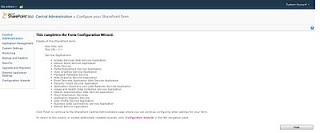
7. Now, check whether the Chart contol are rendering properly in the browser or not. If everything is fine, then continue with your work.. Again if you are getting the same error screen, you need to check the "Service Associations" for your current web application (proceed with step 8).
8. In "Central Administration", Go to "Application Management" and select the "Configure service application associations" in "Service Applications" section.
9. Click on your web application and a pop up windows will be displayed.
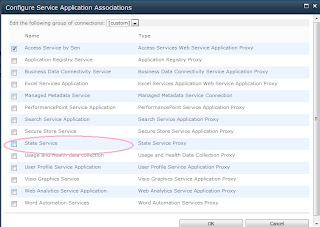
10. Select the "State Service" Check box and click "OK".
2. Check whether the "State Service" is enabled or not (like the below screenshot).

3. If the service is not started or missed, we should configure/start the state service. OK. How to start the service? proceed with step
4.Go to the "Configuration Wizard" and start the configuration
5. Make sure the "State Service" is enabled. (Eventhough it is selected, run the wizard again.Hmmmm...That is microsoft :) )
6.Wait until you see the below screen (It will take few minutes to complete).

7. Now, check whether the Chart contol are rendering properly in the browser or not. If everything is fine, then continue with your work.. Again if you are getting the same error screen, you need to check the "Service Associations" for your current web application (proceed with step 8).
8. In "Central Administration", Go to "Application Management" and select the "Configure service application associations" in "Service Applications" section.
9. Click on your web application and a pop up windows will be displayed.

10. Select the "State Service" Check box and click "OK".
Subscribe to:
Posts (Atom)